Introduction
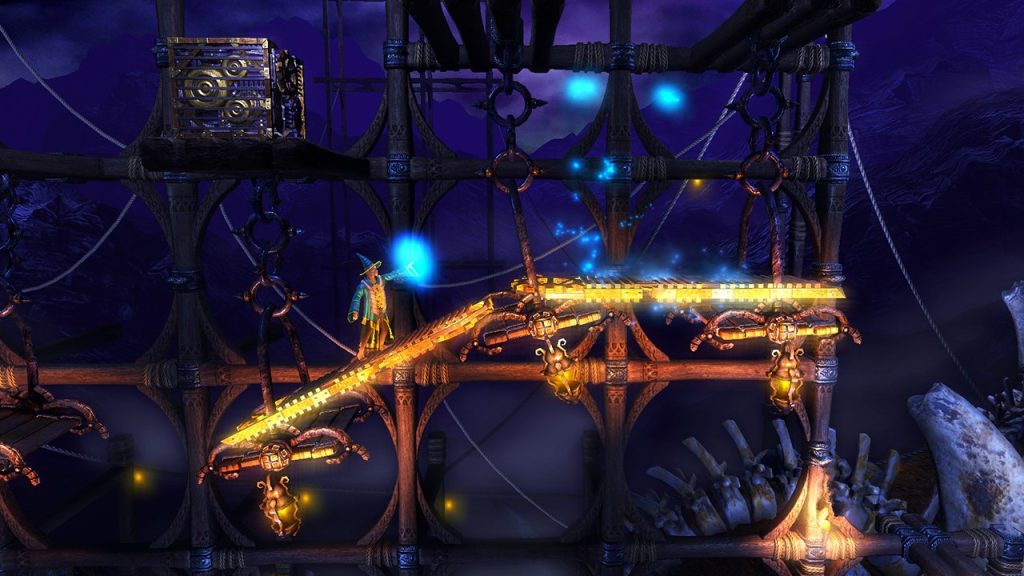
A platformer game is mainly based on movement within the game whether that be running, jumping, flying etc. These games have such a wide potential of themes and genres allowing the creator to really think outside the box! With movement being the key feature its really important the creator spends some time playing with the features of the software to make the game as fun as possible!
Making GAMEBOY ADVVANCE!
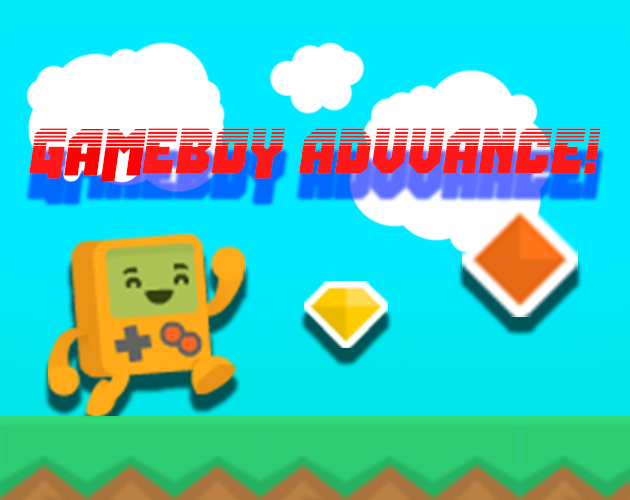
This was a project I found myself really enjoying and can see myself taking it much further. Given this was a downloaded pack of sprites it really allowed me to focus on the gameplay and features to make it more immersive and addicting to the player! The score system is really nice as well as the obstacles getting harder and harder throughout giving that sense of achievement to reach the goal of high score! A lot of inspiration can be taken from classic platform games such as Mario which allows a good control over the player in the game. Overall I’m super happy with how this game turned out but I have to say it could still be in early development as I can think of so much more to do. So far my favourite game to create within Unity and I can see good potential with more in depth stories, characters, powers etc.
Artwork
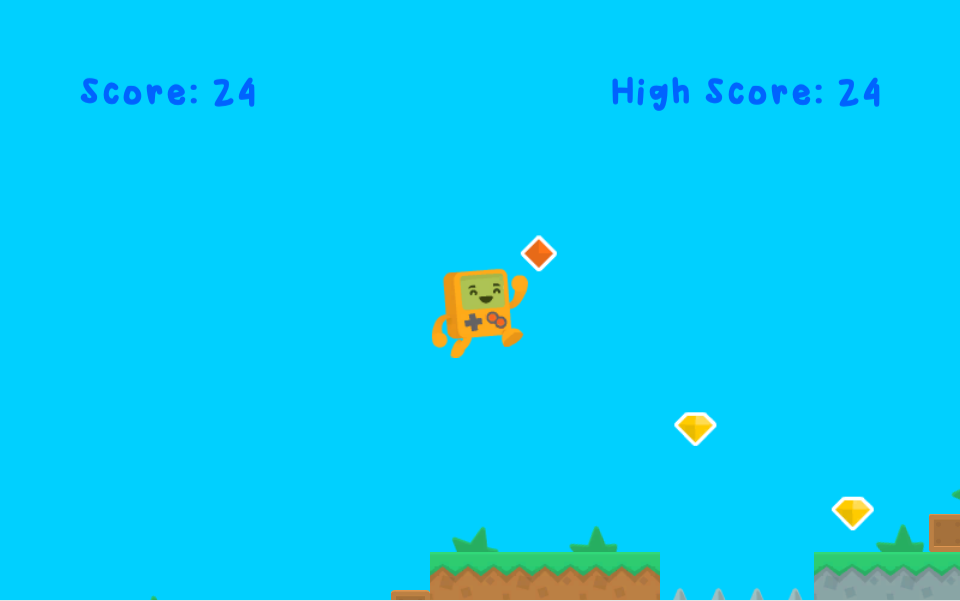
This was a sprite package downloaded from kenney.nl who has tonnes of free sprite packages available. As I had these to help me with the game creation itself I was more able to focus on the gameplay.
Scripting
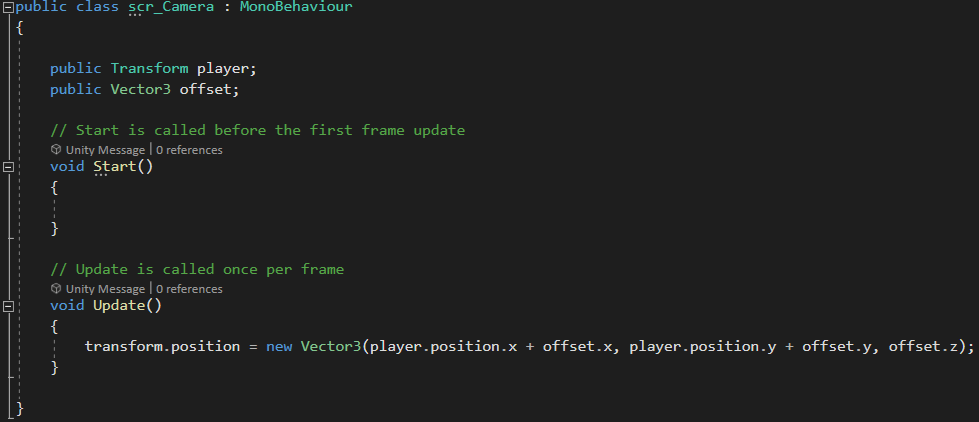
Camera Script
For the camera script it was already one I was familiar with making it much more easy to implement it into this game. In the void Update function we can get the camera to follow the player throughout the platform level.
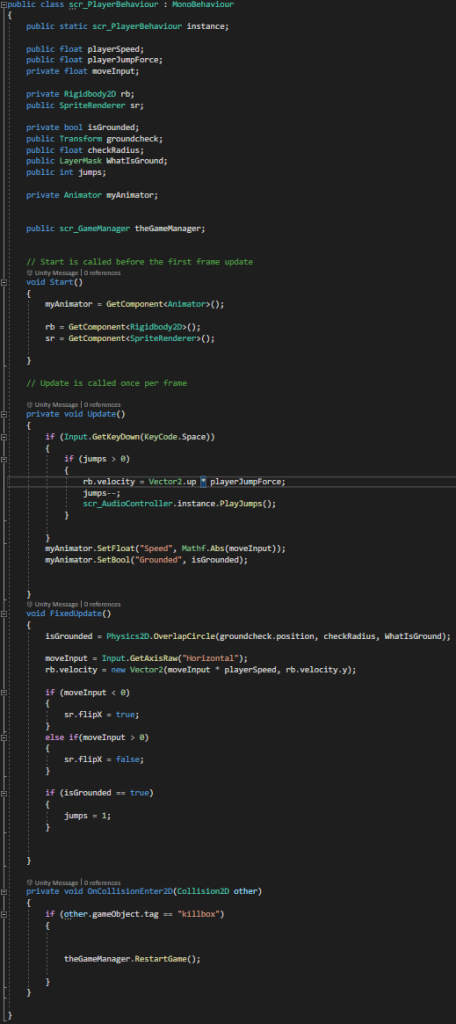
Player Behaviour Script
For the player behaviour script firstly I created a ‘public static’ for the player behaviour script and called it ‘instance’ to be called upon later in the script. then the player movement variables are added for the speed, jump force and the move input. Following by getting access to the objects Rigidbody2D component as well as the SpriteRenderer which allows me to flip the object. The next set of variables are to determine whether or not the player is on the ground or not by using a ‘bool’ variable which acts as a true or false statement. Within these we can also determine the amount of jumps we would like the player so have so its another way of controlling the player but within the script. As this was my first time using animation I tried to keep it as simple as possible. The variable needed for accessing the animation of the character is just ‘Animator’ which is fairly self explanatory. Lastly, I just needed to reference the game manager script so the scripts could essentially reference from each other.
Upon the start of the game I needed access to three main components of the character being the Animator, Rigidbody2D and the SpriteRenderer. Now that I have access to these components within my player object I can use them later to get the movement I’m after.
In my void Update function I can use an if statement to determine whether or not the spacebar has been pressed allowing the player to jump. To do this I add a velocity to the Rigidbody component of the player in an upwards direction which will also determine the player jump force set within Unity. As I would like a sound to play upon the jump I can reference my AudioController script to allow me access to that AudioClip placed onto the character and simply call upon the function in that script. Also within the void Update I have input the jumping animation my accessing ‘myAnimator’ and using the conditions that were previously placed into Unity.
Next in my void FixedUpdate section I can use the bool variable to check whether or not the player is touching the ground, allowing the player to jump when the statement is true. So by referencing the variable bool earlier set we can apply a ‘Physics2D’ function which will check if the player has come within a radius of an object that has a layer called ‘Ground’. For the movement of the player I only needed access to the horizontal axis by using the ‘GetAxisRaw’ function followed by a Vector2 in order to access the speed and velocity of the player. After that we can access the SpriteRenderer variable earlier set in order to determine whether or not the move input in greater or less than 0 in which case it will flip the object image accordingly. Finally I can see if the player is grounded by using an ‘if’ statement and if that is true then it will allow the player to jump if the input is detected.
The last part of this script refers to if the player comes into an object with the tag ‘killbox’ which essentially will call upon the ‘RestartGame()’ function within the game manager resetting the level back to the start.
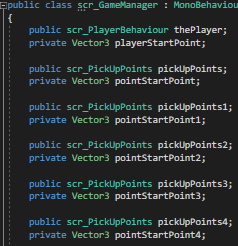
Game Manager Script
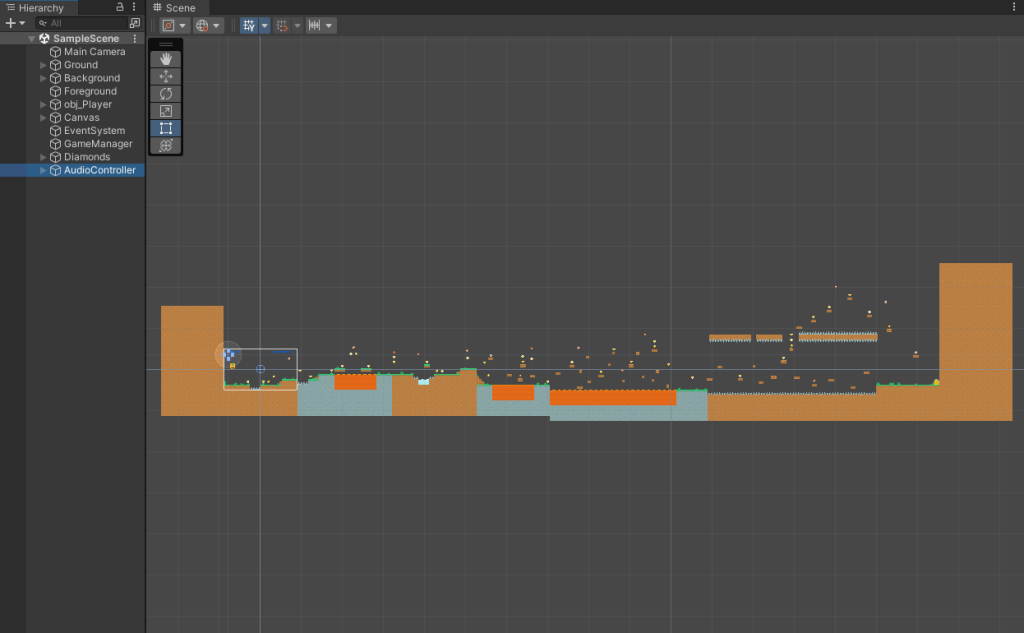
Within Unity I placed an empty object into the game and attached the game manager script which ultimately has control over the overall game itself.
So to start with I have referenced the ‘PlayerBehaviour’ script and the created a Vector3 called ‘playerStartPoint’ to which I will create the function for later in the script.
Lastly I had to do the same with each and every single point object within the game itself by using the same method but naming them accordingly. I’m sure there is a much easier way to do this but this is what worked for me so I went with it.

Within the game manager script in order for the script to understand what the point system was, I had to reference the ‘Score’ script.
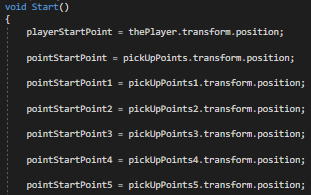
In the void Start function is where I reference my earlier variables and set the ‘playerStartPoint’, ‘pointStartPoint’ and the ‘moreStartPoint’ to its own transform position at the start of the game.
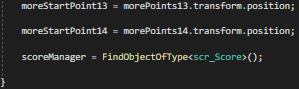
For the score manager I can now use a function called ‘FindObjectOfType<>()’ and reference the score script.
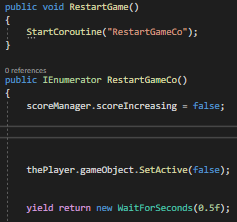
For actually restarting the game we can use a ‘RestartGame()’ function and call upon a ‘StartCoroutine’ which will start the ‘RestartGameCo’ function set below.
For a ‘StartCoroutine’ an ‘IEnumerator’ must also be used for the function we just used above. When the restart game happens we want the high score to remain on the screen yet we no longer was the score to be increasing so we set that to ‘false’.
Upon this the game object of the player will also need to disappear in order to spawn him back to the beginning. We do this by saying the game object is ‘SetActive(false)’ followed by a ‘yield return’ which we can set a time to wait before this all takes place. I found about half a second suitable to get back into the game.
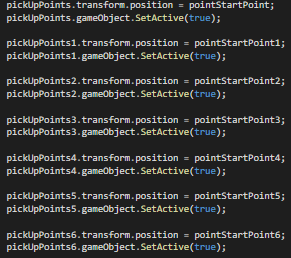
The same had to be done for any object within the game that was destroyed by being collected or either the player dying and the game restarting.
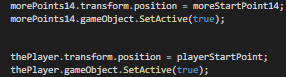
Lastly was to make sure the player respawned back at the start point by setting the ‘SetActive’ to true.
Audio Controller Script
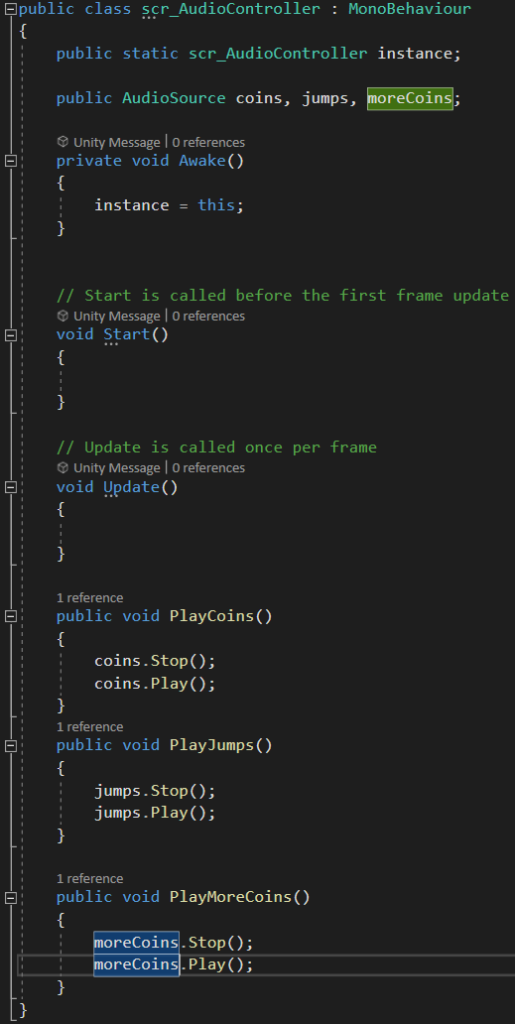
Just like the game manager script I placed an empty object into unity in order to attach the script to. Within this I can add an ‘AudioSource’ component to which I can add the audio clips selected for the game. For this game I had three main sounds being jumps, coins and moreCoins so I started by getting access to the Audio Source.
I create a ‘private void Awake()’ and essentially refer to the spawning of the sound from its own script by using a function called ‘this’
Void start and void update are not required for audio clips but I would need to create a function for each individual sound I have implemented into the game. Thankfully this is nothing too complicated and we can you the ‘Stop’ and ‘Play’ function will then is referenced from other scripts to know when its called upon and play the sound.
Score Script
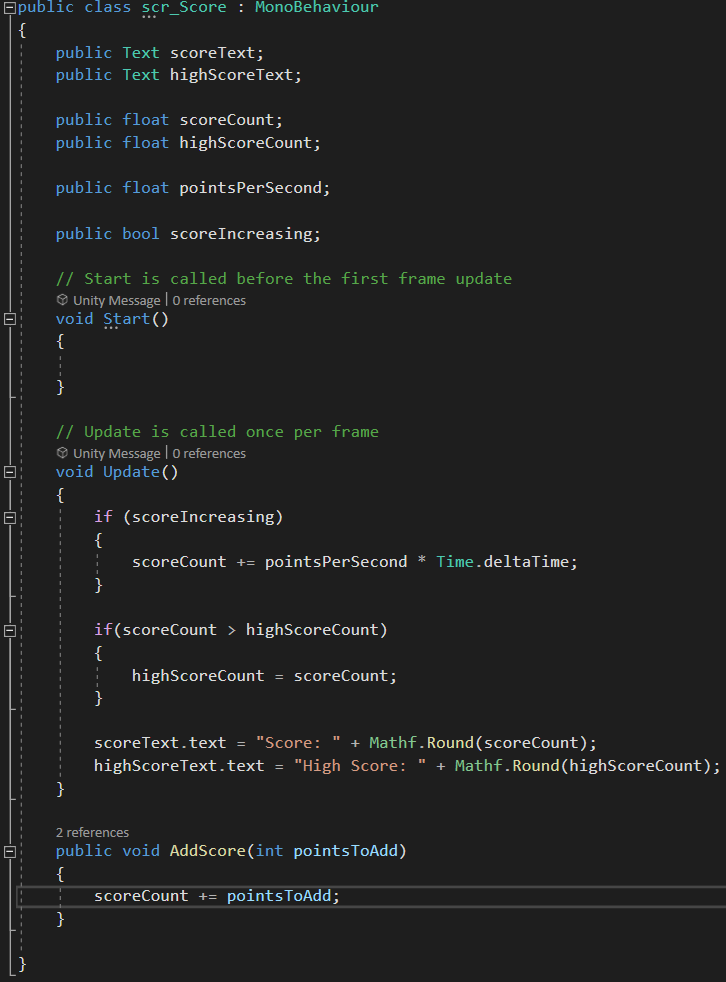
So for the score script there are two main elements being the current score and the high score. As the text box uses UnityUI that will need to be referenced at the start of the script.
The variables required for the scoring system firstly refer to the two text boxes within unity that display the numbers. Next a public float is needed for both the current score and the high score. I wanted to implement a scoring system that would possibly deduct points for taking too long to complete the level but I decided to leave that feature out for now.
From previous scripting I was able to use another ‘if’ statement to increase or decrease the points per second if I was going to add that function. following from that we can easily display a high score count by saying that the high score count is equal to the score count which will set it as what it currently is if it’s beating the high score.
Within the score text boxes it will all be in decimal points to start off with but that can be fixed with a simple function called ‘Mathf.Round’ which will round the number to a whole number.
Lastly was to create a public void and using a ‘AddScore’ function we can make sure points are being added to the score upon certain conditions.
Pick Up Points/More Points Script
The pick up points script and the more points script are two separate scrips but both follow the same scripting but just altered for the audio played when collected a jewel.
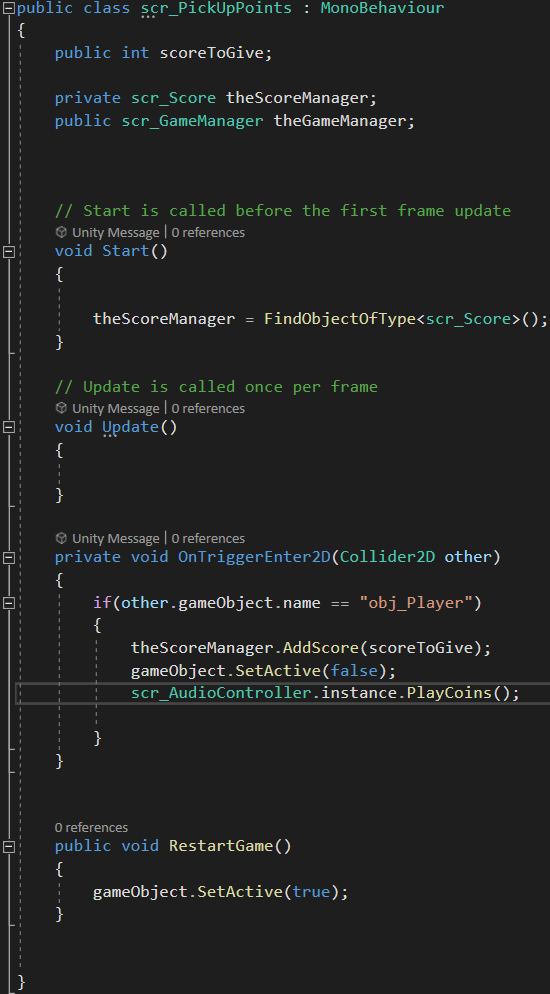
Firstly the variable I would like to add is an ‘Integer’ which stands for a whole number and within this we can decide on the amount of points we want this jewel to add to the score.
As all of these scripts need to be communicating with each other I also added the score script and the game manager script so I can call upon them later.
Later in the script I have created a trigger component so that when this is triggered the following script will play through that’s within the ‘if’ statement. It will first add the score of the point to the score within the score manager script, followed by setting the objects ‘SetActive’ to false and finally playing the noise of the coin or jewel collected.
Finally upon restarting the game I need the points to come back on the screen so the player can do the level again.
Animation
With this being my first time using the Unity engine to create some movement and jumping animations I found it really interesting exploring the tools available to create a simple animation.
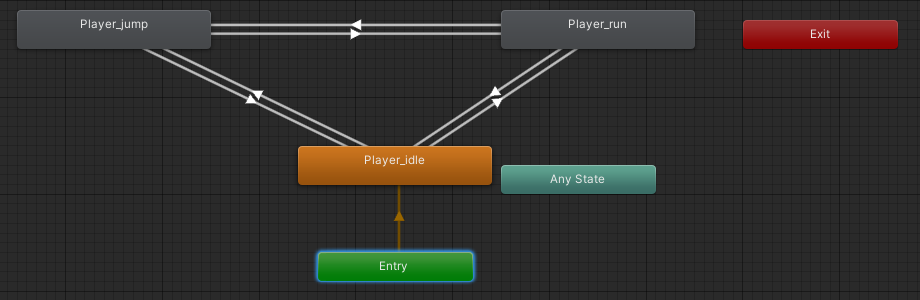
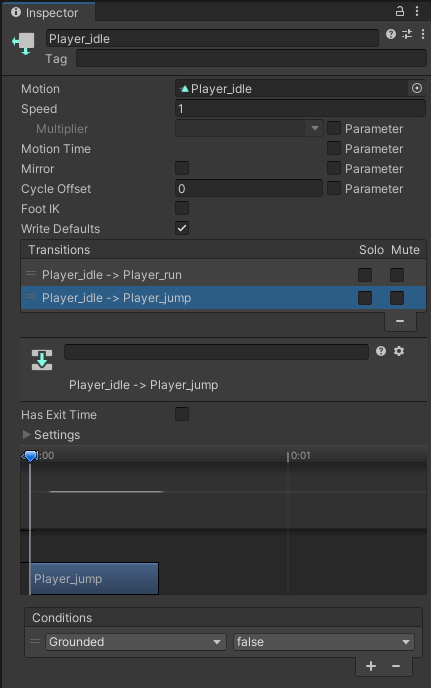
For the animations I could simply get an idle image of the sprite and then create some conditions to be met in order for the animation to play for either jumping or running.
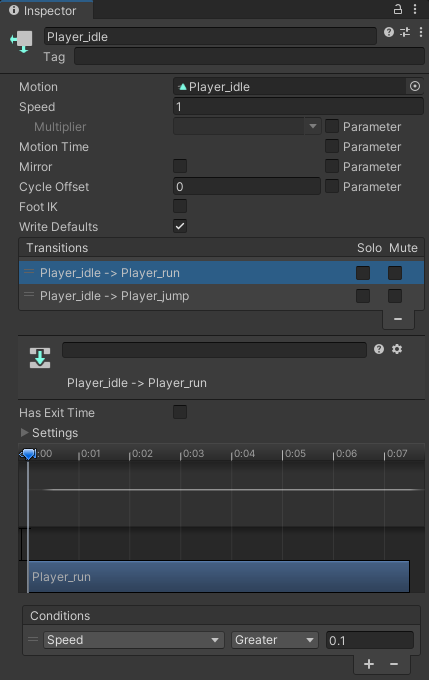
For the conditions we use a bool to determine whether or not the player is grounded and if not then to play the jump animation. Same thing applies for running except we use speed and say if its greater than 0 the animation of running will then play creating a much more enjoyable immersive experience.
Challenges
The main challenges I have faced within GAMEBOY ADVVANCE! tends to be the jumping capabilities. Although I’m super happy with the feel of this game in terms of movement, there are a few buggy spots that may not let the player double jump and making them fall to their death restarting the game. I can imagine this would get quite frustrating over time even for myself as I have put about 6 bug fixed versions of the game out already but then a new bug is found and the process repeats. Apart from that its been a challenge getting to learn some more in depth scripting but I have really tried to excel myself with the level of research and time put into the gameplay.
How Could It Progress
I believe that platformers have huge potential to appeal to a very wide audience with the amount of ideas the creator can come up with. I would love to make this game more original as in make my own sprite pack to develop my own story, characters, attributes etc. Primarily I think a mass amount of time needs to go into movement for it to feel as smooth as possible. For me personally, I would like to take this idea and create my own sci-fi/action version in an unknown world with multiple levels, enemies, obstacles, purchase upgrades and so much more.
Link To GAMEBOY ADVVANCE!
https://jacobgalbraith.itch.io/gameboy-advvance
Referenced Material:
Kenney (2018) Kenney • Simplified Platformer Pack. kenney.nl. Available online: https://kenney.nl/assets/simplified-platformer-pack [Accessed 01 Nov. 2021].
gamesplusjames (2015a) Unity Endless Runner Tutorial #3 – Animations & Following Camera. www.youtube.com. Available online: https://www.youtube.com/watch?v=cdY-V6k_58k&list=PLiyfvmtjWC_XmdYfXm2i1AQ3lKrEPgc9-&index=3 [Accessed 01 Nov. 2021].
gamesplusjames (2015b) Unity Endless Runner Tutorial #11 – Death & Restarting. www.youtube.com. Available online: https://www.youtube.com/watch?v=d06ljVEAd78&list=PLiyfvmtjWC_XmdYfXm2i1AQ3lKrEPgc9-&index=11 [Accessed 01 Nov. 2021].
gamesplusjames (2015c) Unity Endless Runner Tutorial #12 – Score & High Score System. www.youtube.com. Available online: https://www.youtube.com/watch?v=9HvTwtfBaYM&list=PLiyfvmtjWC_XmdYfXm2i1AQ3lKrEPgc9-&index=12 [Accessed 01 Nov. 2021].
gamesplusjames (2015d) Unity Endless Runner Tutorial #13 – Picking Up Coins For Points. www.youtube.com. Available online: https://www.youtube.com/watch?v=FaX4B_FMPIg&list=PLiyfvmtjWC_XmdYfXm2i1AQ3lKrEPgc9-&index=13 [Accessed 02 Nov.2021].
gamesplusjames (2015e) Unity Endless Runner Tutorial #19 – Adding Sound Effects. www.youtube.com. Available online: https://www.youtube.com/watch?v=E2UTNUuRpi4&list=PLiyfvmtjWC_XmdYfXm2i1AQ3lKrEPgc9-&index=19 [Accessed 03 Nov. 2021].